A lot of B2B manufacturers run their sales process the same way for years longer than they should: quotes built by hand in Word, pricing history scattered across spreadsheets, and no single place to check what was actually sold to a given client. It works, until the business outgrows it. This is a real, anonymised account of what replacing that setup looked like for one of our clients: a US-based manufacturer of custom-built power infrastructure equipment.
The Client
The client manufactures custom-built power infrastructure equipment: transformers, switchgear, and circuit breakers, built to order for data center, utility, and industrial EPC customers. Nothing is sold off the shelf. Every unit is engineered to a specification, and lead times run from weeks to months depending on the product line.
The Problem: Word Quotes and Untracked Sales History
Every quote started the same way: a blank Word document, with the full technical specification for that transformer retyped or copy-pasted in by hand. Alongside that, the sales team kept a separate set of Excel sheets to track what had actually been sold, to which client, and at what price.
Neither of those lived in a shared system. There was no reliable way to look up what a given client had previously ordered or paid, and every new quote started close to from scratch, even for a returning customer. The specification, the pricing, and the sales history were three separate problems with three separate, disconnected answers.
What We Built: A Configurable CRM Catalog
We implemented Dynamics 365 Sales as the client’s central CRM, built around a configurable product catalog for their transformer lines. Instead of a rep retyping specifications into a document, each transformer is modelled as a configurable product: a quote is built by selecting the applicable configuration, not writing the specification by hand.
In practice, that means a transformer product family sits at the top of the catalog, broken into the specification groups a rep actually configures against, electrical rating, physical and enclosure requirements, options and accessories, and the combination selected for a given deal becomes the line item on that quote.

Connecting CRM to Business Central: Three Integration Paths
A CRM that isn’t connected to the ERP just moves the disconnection problem somewhere else. The client was already running Business Central, so the integration needed to cover three different jobs, and each one turned out to need a different mechanism rather than one blanket sync.
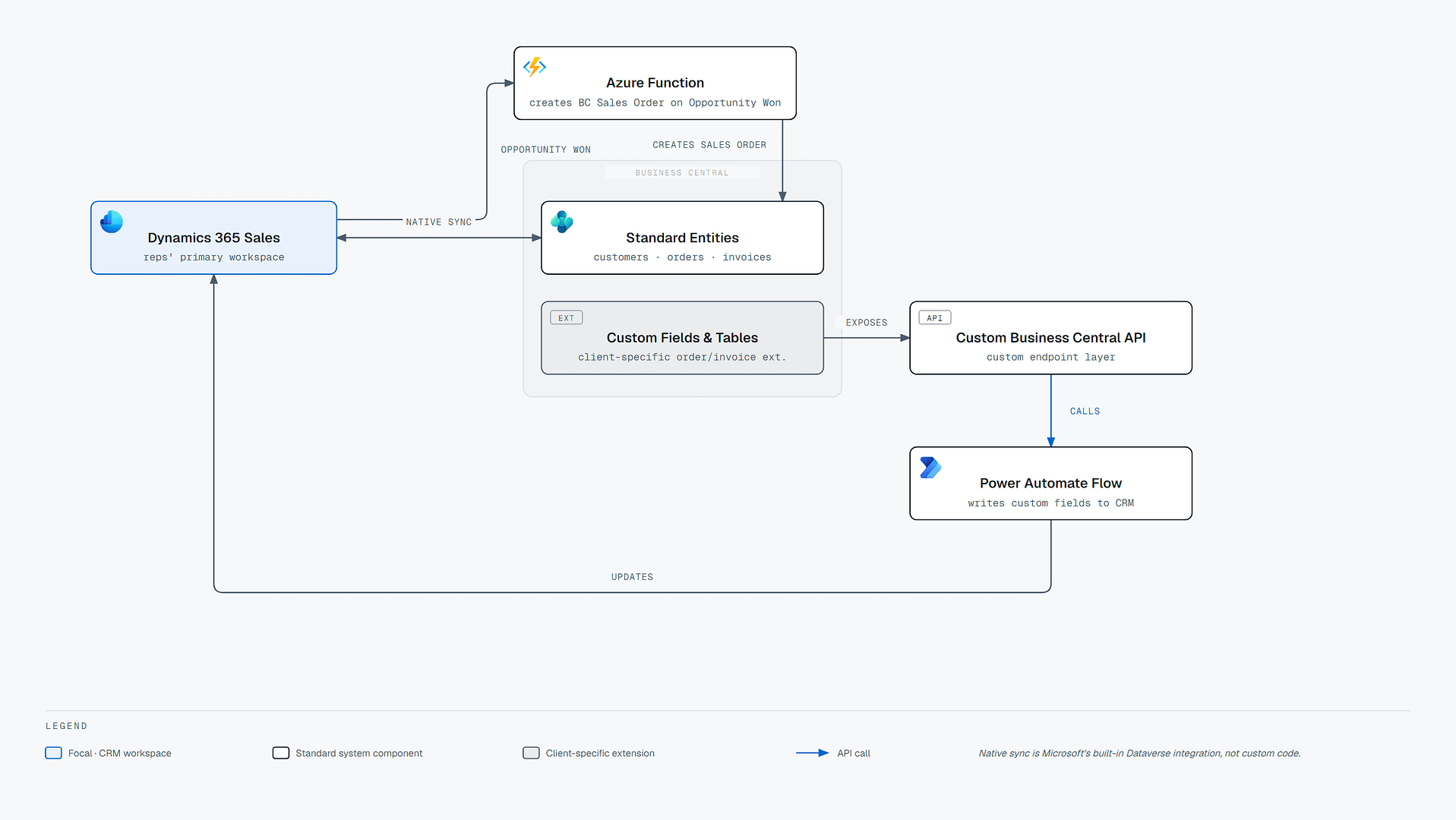
- Standard records. Customers and other standard entities stay in sync through Microsoft’s native Dataverse to Business Central integration. This is Microsoft’s built-in connector, not custom code, and it’s the right tool for anything that maps cleanly to a standard table on both sides.
- Opportunity to sales order. The native integration doesn’t know about the client’s sales process, so turning a won opportunity into a Business Central sales order needed its own logic. That’s handled by an Azure Function, described in detail below.
- Custom fields and tables. The client had already extended Business Central with custom fields and additional tables to capture information specific to their production process, on orders and invoices in particular. Native sync doesn’t reach those, so a Power Automate flow calls a custom Business Central API and brings those extended fields into CRM as well.
We’ve written before about the general pattern behind custom Dynamics 365 integrations in our Business Central integration architecture guide. This project is a real-world example of that pattern applied alongside native sync rather than replacing it, using each mechanism for the part of the problem it actually fits.
From Opportunity Won to Sales Order: The Azure Function Flow
This is the part of the integration that actually moves a deal from CRM into production. When a rep marks an opportunity as Won in Dynamics 365 Sales, a Dataverse webhook fires on that record update, synchronously, rather than on a polling schedule. That webhook invokes an Azure Function, which calls the Business Central API directly to create the sales order.
Routing this through an Azure Function rather than the native connector was a deliberate choice. Creating a Business Central sales order from a won opportunity isn’t a like-for-like field mapping. It’s a business event with its own logic, and an Azure Function gives that logic a clean, testable home rather than burying it inside a generic sync rule.

A 60-Day Delivery
The full implementation, from initial scoping through go-live, was delivered in 60 days. Within that window: the CRM was configured with the product catalog described above, the native Business Central integration was set up, the Azure Function and Power Automate extension work was built and tested, and the whole thing went through user acceptance testing before go-live. For more on how we typically structure a delivery like this, see our Dynamics 365 implementation timeline checklist.

The Outcome
- Every quote and completed sale is now tied to a CRM record, replacing quotes that were previously built from scratch in Word
- The separate Excel sheets the sales team maintained to track what had been sold, to which client, and at what price were retired once that information lived directly in CRM and Business Central
- Transformers are now quoted against a configurable product catalog, replacing manual retyping of specifications for every quote
- A won opportunity creates its Business Central sales order automatically through the Azure Function, rather than being re-entered by hand
- Standard Business Central data, customers, orders, and invoices, stays in sync with CRM through Microsoft’s native integration, extended with Power Automate flows to cover the client’s custom Business Central fields and tables
- The implementation was delivered in 60 days, from initial scoping to go-live
If your sales process still lives in Word documents and spreadsheets, or your CRM and ERP are technically connected but not in a way that matches how deals actually move through your business, this is the kind of problem we work on. Here’s what to look for in a Dynamics 365 partner if you’re evaluating who to bring in.