New Copilot Studio agents default to generative orchestration, and for most agents that is the right setting to keep. Generative orchestration lets an LLM-driven planner choose which topics, tools, knowledge sources, and connected agents to use based on their descriptions, instead of you hand-wiring trigger phrases and branching logic. Classic orchestration, where each topic fires only when a user’s message matches its trigger phrases, still earns its place for tightly scoped bots and for steps that must never be left to an AI’s judgement.
This is an architecture decision, not a settings toggle you flip and forget. Get it wrong and you either end up with a rigid bot that can’t handle a two-part question, or a generative agent that confidently calls the wrong tool because two of your topics have overlapping descriptions. Here’s how the two models actually differ under the hood, and a framework for deciding which parts of your agent should run generative and which should stay deterministic.

What Actually Changes When You Turn It On?
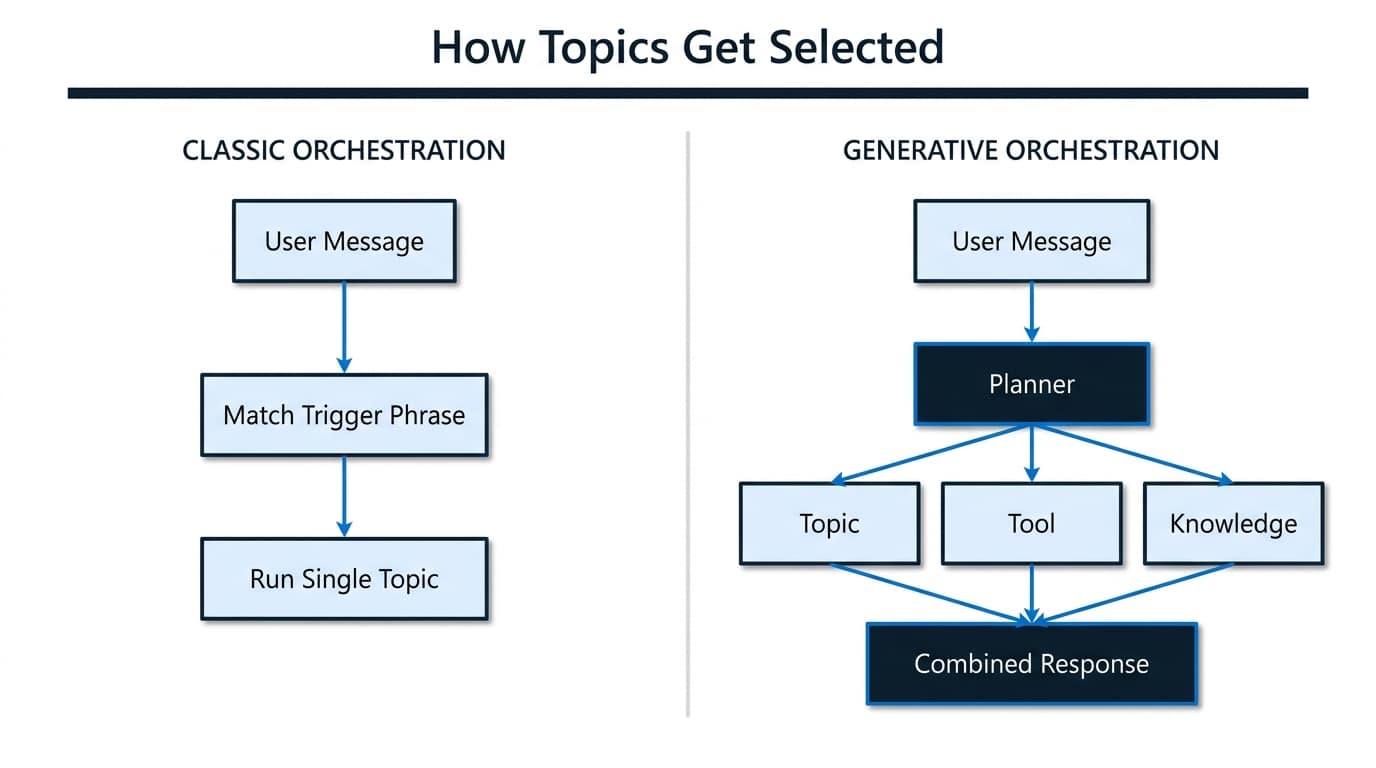
Classic orchestration matches a user’s message against each topic’s trigger phrases and runs the single best match, falling back to knowledge search only if nothing matches. Generative orchestration replaces that matching step with an LLM planner that reads the description of every topic, tool, connected agent, and knowledge source you’ve configured, decides which ones are relevant to the message, and can call several of them in the same turn.
| Behaviour | Classic orchestration | Generative orchestration |
|---|---|---|
| Topic selection | Matches user text against trigger phrases | Matches user intent against topic descriptions |
| Tools | Only callable from inside a topic | Called directly by the planner when relevant |
| Knowledge sources | Fallback when no topic matches | Searched proactively alongside topics and tools |
| Multi-part questions | Picks one topic; the rest of the question is dropped | Chains multiple topics or tools in one turn |
| Missing information | You author Question nodes manually | The planner auto-generates the follow-up question |
| Final response | You author Message nodes manually | The planner composes the reply from whatever it called |
The practical effect: a user asking “what are your opening hours and where’s my nearest store” gets one topic’s answer in classic mode, and both answers, correctly merged, in generative mode. That’s the headline benefit. The cost is that you’re trading explicit, testable branching for a planner making judgement calls, which is exactly why the next two sections matter more than the toggle itself.
The Architecture Behind the Planner
A generative agent isn’t just “classic orchestration plus AI.” It’s built from five distinct pieces, and understanding what each one is and isn’t responsible for is what stops an implementation from turning into a black box.
- Orchestrator (planner). The LLM that turns a user message or event into a structured, ordered plan: which topics, tools, or agents to call, in what sequence, with what data passed between steps.
- Knowledge layer. Read-only retrieval sources (documents, databases, SharePoint, custom connectors) the planner queries for grounding. It returns evidence and citations; it never takes action.
- Tools and connectors. The agent’s callable skills, each with defined inputs, outputs, and error conditions. The planner treats a well-built tool as a deterministic function, which means a flaky or inconsistent tool degrades the whole agent’s reliability. Dynamics 365 also now ships MCP server support, letting an agent call CRM data directly as a tool without a custom connector.
- Topics and inline agents. Reusable dialogue logic the planner can invoke by matching its described purpose to the user’s need, not just a trigger phrase.
- Event triggers. Scheduled or event-based starts (a record update, a timer) that launch the planner without any user message, for agents that need to act proactively rather than only respond.
If you’re new to building agents at all rather than deciding between orchestration models, our guide to building your first Copilot Studio agent without writing code covers the basics these five pieces sit on top of.
Three Control Layers You Should Design For
The mistake we see most often is treating generative orchestration as all-or-nothing: either the planner decides everything, or you’re back to fully scripted classic topics. Microsoft’s own guidance describes three layers, and deliberately designing which of your actions sits in each one is the actual architecture work.
- Deterministic layer. Rule-based logic with no AI interpretation, for anything irreversible: processing a payment, deleting a record, changing a permission. Either don’t expose these actions to the planner at all, or wrap them in a topic that forces a confirmation step the AI can’t skip.
- Hybrid (intercept) layer. The planner drafts or performs an action, but a checkpoint intercepts it: a manager approval step, an escalation above a value threshold. You get the planner’s flexibility with a human still in the loop for medium-risk work.
- AI orchestrator layer. Fully generative, for low-risk work: most Q&A, information lookups, simple multistep requests. The planner composes and executes without asking permission, bound only by which tools and knowledge it’s been given access to.
In practice, define this per action before you build: can the AI just do it, does it need in-conversation confirmation, or does it need offline approval through a workflow? A customer service agent we’d build alongside the escalation patterns in our Copilot Studio chatbot guide is a good example: answering an order status question sits in the AI orchestrator layer, but issuing a refund sits in the deterministic layer every time.

Writing Descriptions the Planner Can Use
The planner picks topics and tools primarily by matching their name and description against the user’s intent. This is the single highest-leverage thing to get right, and the easiest to get sloppy about once a project has thirty topics.
| Weak | Better | Why |
|---|---|---|
| Name: “Flow1”. Description: “This tool can answer questions.” | Name: “Order Status Lookup”. Description: “Looks up the current status and expected delivery date of a customer order by order number.” | Vague names and descriptions give the planner nothing to match against, and it either ignores the tool or calls it for the wrong reason |
| “Current Weather” and “Weather Forecast” with near-identical descriptions | Each description states what it does and, explicitly, what it doesn’t: “provides today’s weather only, not future days” | Overlapping descriptions cause the planner to call both, or the wrong one, when intents are close |
| Description written in passive voice with internal jargon | Active voice, plain language, one or two sentences | The planner matches on meaning, and plain, specific language matches more reliably than internal terminology |
Two smaller details matter once your agent is live. First, topic and tool inputs should use human-readable names like “order number” or “start date,” because generative orchestration auto-generates the clarifying question from that name instead of you authoring a Question node. Second, if a topic’s result is meant to feed the planner’s final answer, return it as a topic output variable rather than sending it directly in a message node; that lets the planner combine it cleanly with whatever else it called in the same turn.
Known Limitations Nobody Mentions Until They Bite
A few current, documented limitations of generative orchestration change how you should design an agent, and they rarely show up until you hit them in testing.
- Custom entities aren’t supported as tool or topic inputs. Closed lists and regex entities only work inside a Question node in classic-style dialogue. If a value must be validated against a fixed list, you still need a Question node for that part of the flow.
- Automatic disambiguation is off by default. Classic orchestration’s “Multiple Topics Matched” system topic, which asks the user to choose between close matches, isn’t called by generative agents unless you explicitly turn it back on. Leave it off during testing so you can see which topic the planner actually preferred, then decide whether to re-enable it.
- Conversation history is limited. The planner uses recent context to fill inputs and avoid repeat questions, but the window isn’t unlimited. For long conversations, make sure key facts get restated periodically rather than assuming the agent still “remembers” something from ten turns back.
- Conversational boosting is ignored. If you’ve customised how classic agents search knowledge through the Conversational Boosting system topic, that customisation doesn’t apply once generative orchestration is turned on.
- Hyperlinks from knowledge sources flatten to plain text. A link inside a Word document, PDF, or web page your agent retrieves shows up as plain text in the response, not a clickable link.
When Classic Orchestration Is Still Right
Generative orchestration is the default for a reason, but classic orchestration is still the better choice in specific situations, not a legacy mode to migrate away from on principle:
- Small, tightly scoped bots. A five-topic FAQ bot with no real ambiguity between intents doesn’t need a planner; trigger phrases are simpler to build, test, and audit.
- Regulated or auditable flows. Where you need to demonstrate exactly which path a conversation could take, and prove no AI judgement call could route it differently, deterministic trigger-phrase matching is easier to document for compliance review.
- Environments where an admin has disabled generative orchestration. If your organisation’s Power Platform environment has this turned off centrally, agents created there are classic-only regardless of what you’d prefer.
- Prebuilt agents you haven’t modified. An agent created from a prebuilt template inherits that template’s orchestration mode, so check rather than assume.
Switching Between the Two
The setting lives on the agent’s Settings page, under the Generative AI section, as a single Yes/No toggle for “Use generative AI orchestration for your agent’s responses?” It’s per-agent, so a solution can mix both: a generative front-of-house agent that hands off to a classic, fully deterministic agent for a regulated sub-process.
Turning generative orchestration on for an agent that was built classic doesn’t throw away your existing topics. Copilot Studio auto-generates a starting description for each one based on its trigger phrases, which is usually a workable first draft, but it’s worth reviewing and tightening every description before you rely on it in production, for the same reasons covered above.
Frequently Asked Questions
Is generative orchestration slower or more expensive to run than classic?
It calls an LLM to plan every turn, which classic trigger-phrase matching doesn’t need, so there’s inherently more processing involved. In practice the difference is rarely the deciding factor for an SME-scale agent; the bigger cost driver is how many tools and knowledge sources a single turn ends up calling, not the orchestration mode itself.
Can one agent use both orchestration modes at once?
Not within a single agent, the setting is one toggle per agent. What you can do is split responsibilities across multiple connected agents, generative for the flexible front-of-house conversation, classic for a narrow, auditable sub-agent handling a regulated step, and let the generative agent hand off to it.
How do I debug a generative agent that picks the wrong topic?
Open the activity map in the test panel after asking the query that misfired. It shows exactly which topics, tools, or knowledge sources the planner selected and in what order. Most misfires trace back to two topics with overlapping descriptions; tightening the wording, including stating what each one explicitly doesn’t do, usually fixes it without any logic changes.
Do I need to rebuild my topics to move from classic to generative?
No. Existing topics carry over, and Copilot Studio generates a first-pass description for each from its trigger phrases. Budget time to review those descriptions and to convert any Question nodes that used custom entities, since those still need a Question node rather than becoming a planner input.
Next Steps
Start by mapping your agent’s actions into the three control layers before you touch the orchestration toggle: which actions the AI can just do, which need a confirmation step, and which must never leave a fully deterministic path. That exercise tells you far more about the right architecture than the generative-versus-classic decision on its own. AlishBit designs and builds Copilot Studio agents for businesses across Spain and Europe, including the control-layer and custom action work this article touches on, and we’re happy to review an existing agent’s architecture with you.
Building or Reviewing a Copilot Studio Agent?
AlishBit designs Copilot Studio agents for businesses across Spain and Europe, from first build to production architecture review. Book a free consultation and talk through your agent’s design.