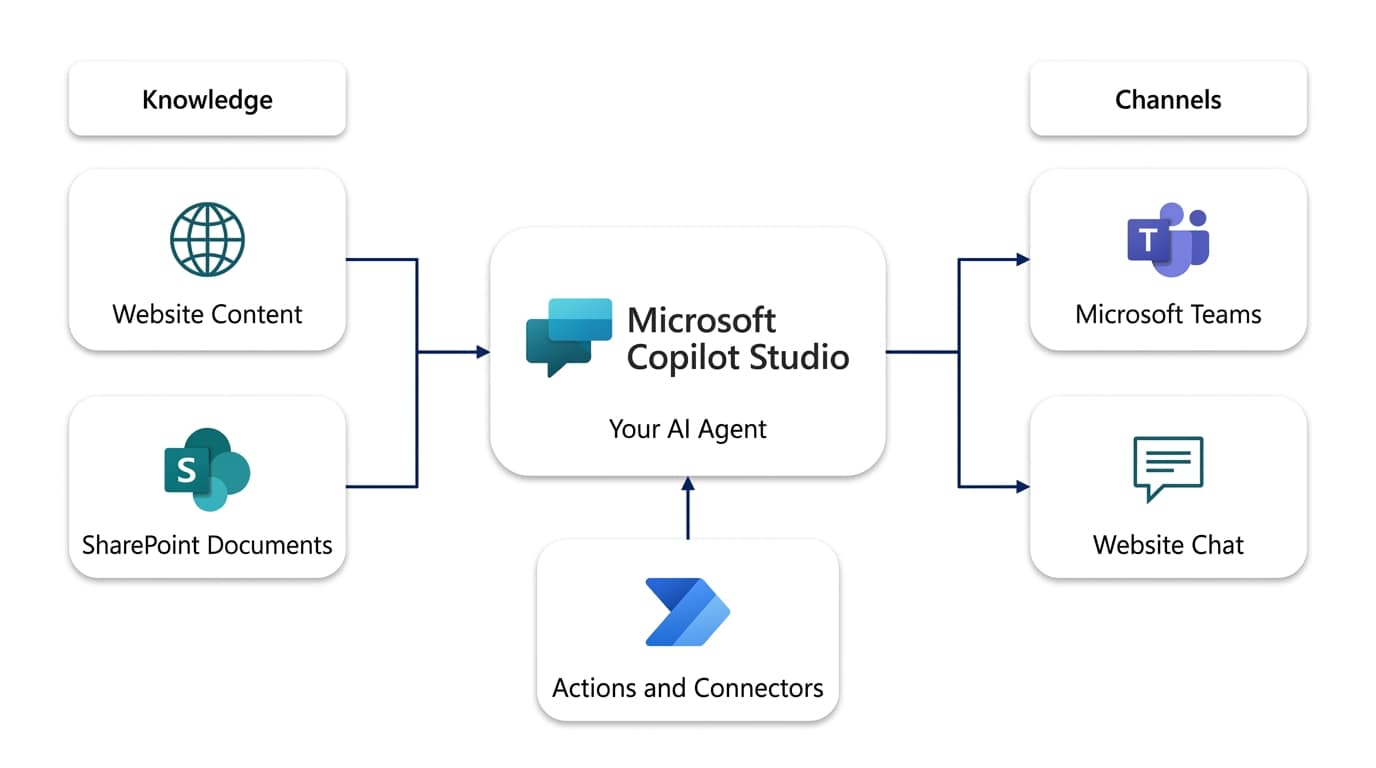
Copilot Studio is Microsoft’s low-code tool for building custom AI agents, and you can have a working one running in an afternoon without writing any code. You define the agent’s purpose, point it at knowledge sources like your website or SharePoint, add actions through connectors, test it in a chat pane, and publish it to Microsoft Teams or your website. This guide walks through each of those steps in order, using a scenario we see often at Spanish SMEs: an internal agent that answers HR and product questions so staff stop pinging the same two people all day.
What Exactly Is Copilot Studio?
Copilot Studio is part of the Microsoft Power Platform family, alongside Power Apps and Power Automate. You work in a browser at copilotstudio.microsoft.com, describing what you want in plain language and adjusting settings in a visual canvas. No Visual Studio, no Python, no API documentation.
The agents you build can do three broad things: answer questions grounded in your own content, take actions in other systems (create a lead in Dynamics 365, log a ticket, send an email), and, since Microsoft added autonomous capabilities, run on triggers without a human starting the conversation. For your first agent, stick to the first two. It’s worth reading how Microsoft Copilot is changing CRM for European businesses if you want the bigger picture before you build.
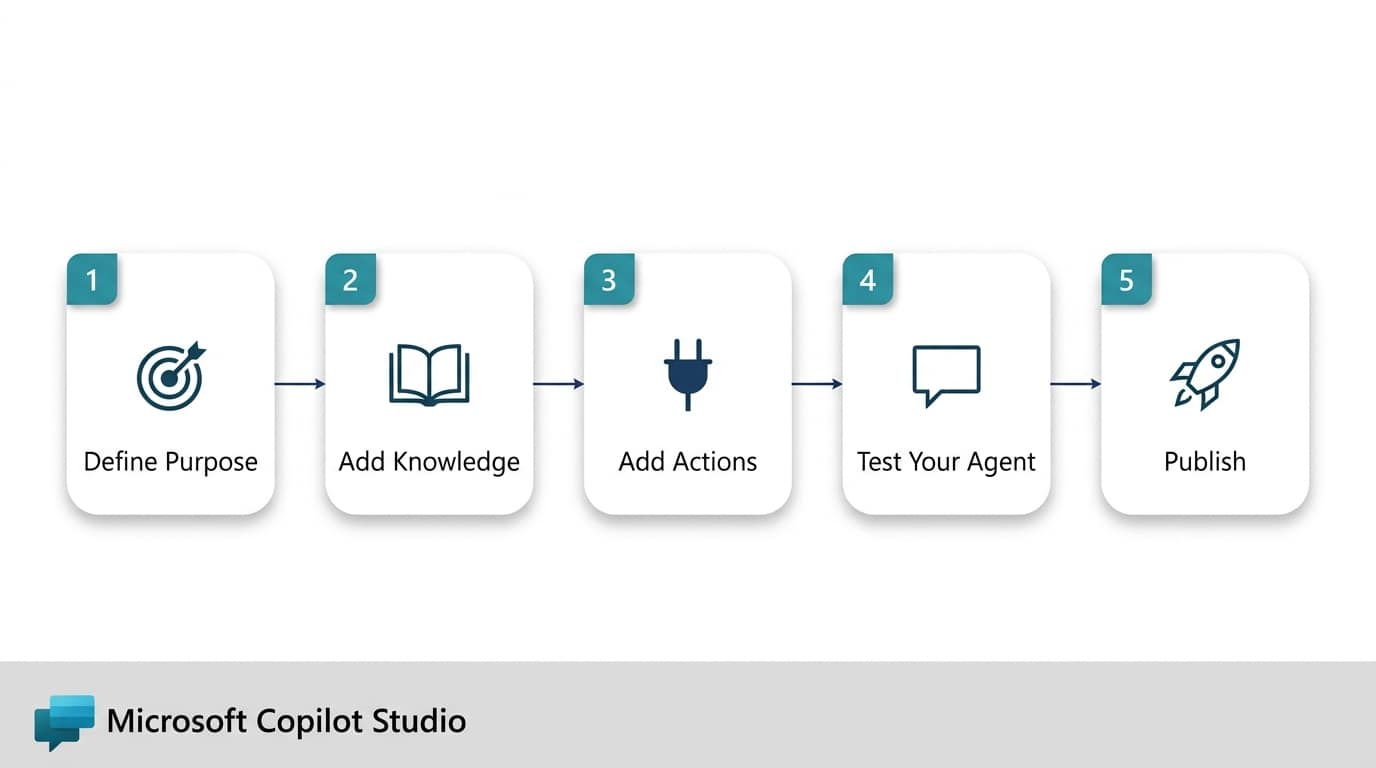
Step 1: Define Your Agent’s Purpose
Narrow beats broad every time. An agent that answers “questions about our returns policy and delivery times” will perform far better than one that answers “anything about the company”. When you create a new agent, Copilot Studio asks for a name, a description, and instructions. The instructions field matters most: it’s where you tell the agent its role, its tone, and its boundaries.
Imagine a 40-person distributor in Málaga. A good first instruction set would be: “You answer employee questions about HR policies, holidays, and expenses using only the company handbook. Answer in the language the user writes in, Spanish or English. If you don’t know, say so and suggest emailing HR.” That last sentence is important. Telling the agent what to do when it doesn’t know the answer prevents most embarrassing replies.
Step 2: Add Knowledge Sources Like Your Website and SharePoint
Knowledge sources are what the agent reads to answer questions. In the agent’s Knowledge tab you can add several types, and mixing them is normal:
- Public websites: your own site is the obvious choice for a customer-facing agent. The agent grounds answers in indexed pages, so out-of-date pages produce out-of-date answers.
- SharePoint: point the agent at a site or document library, for example the folder holding your employee handbook. With authentication configured, the agent respects each user’s existing SharePoint permissions, so people can’t extract documents they couldn’t already open.
- Uploaded files: PDFs and Word documents you drop straight into the agent, handy for a price list or FAQ document.
- Dataverse tables: structured data, such as products or FAQs already stored in your Dynamics 365 environment.
A practical tip from our own projects: clean the source before you connect it. Ten well-written pages beat two hundred stale ones. If your handbook contradicts itself, the agent will faithfully reproduce the contradiction.
Topics vs Generative Answers: Which Should You Use?
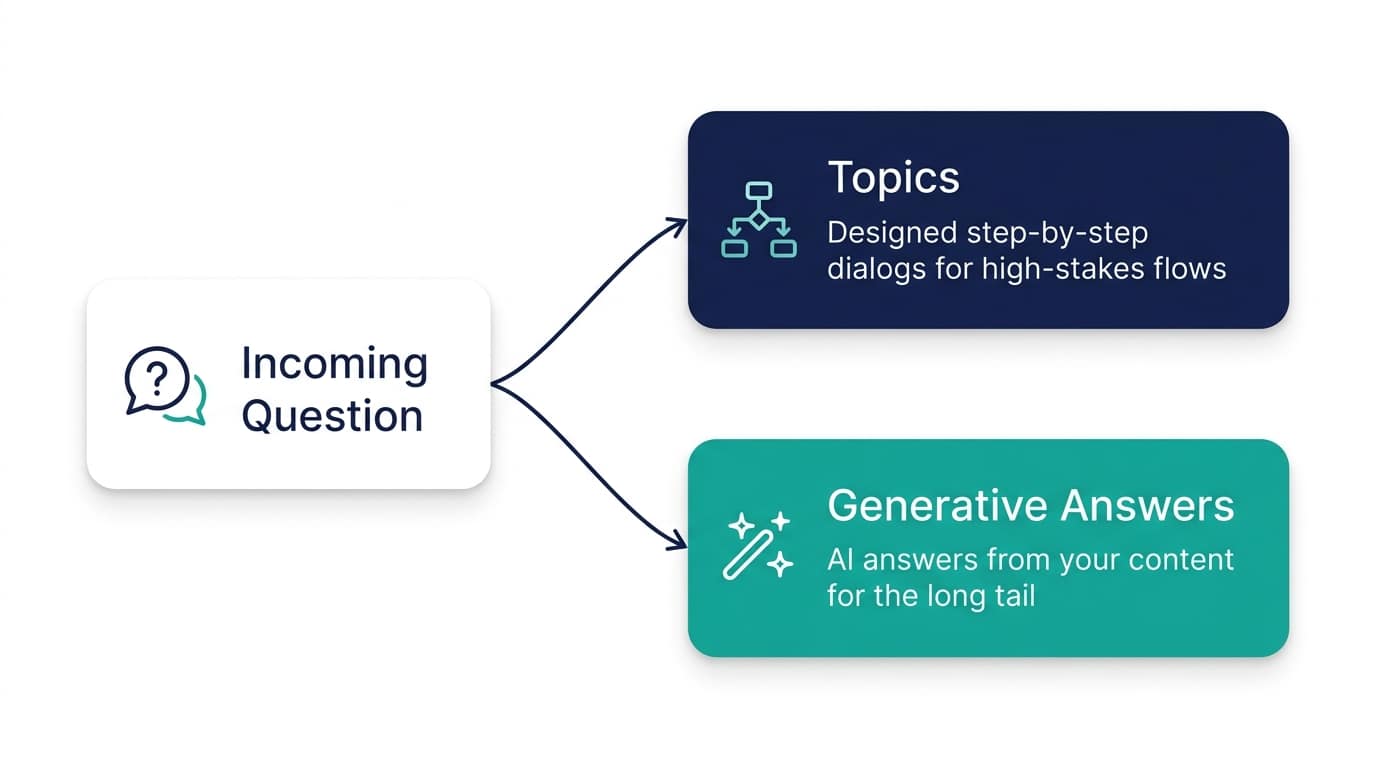
This is the design decision that confuses most first-time builders. A topic is a conversation path you author yourself: trigger phrases, scripted questions, branching logic, maybe a card with buttons. Generative answers let the AI compose a reply from your knowledge sources on the fly. Modern agents use generative orchestration to blend both, but you still decide where to invest your authoring time.
| Situation | Use a topic | Use generative answers |
|---|---|---|
| Answer must be word-for-word exact (legal text, prices) | Yes | No |
| Hundreds of possible questions across many documents | Impractical | Yes |
| Multi-step process (collect a form, then act) | Yes | No |
| Content changes weekly | High maintenance | Yes, updates automatically |
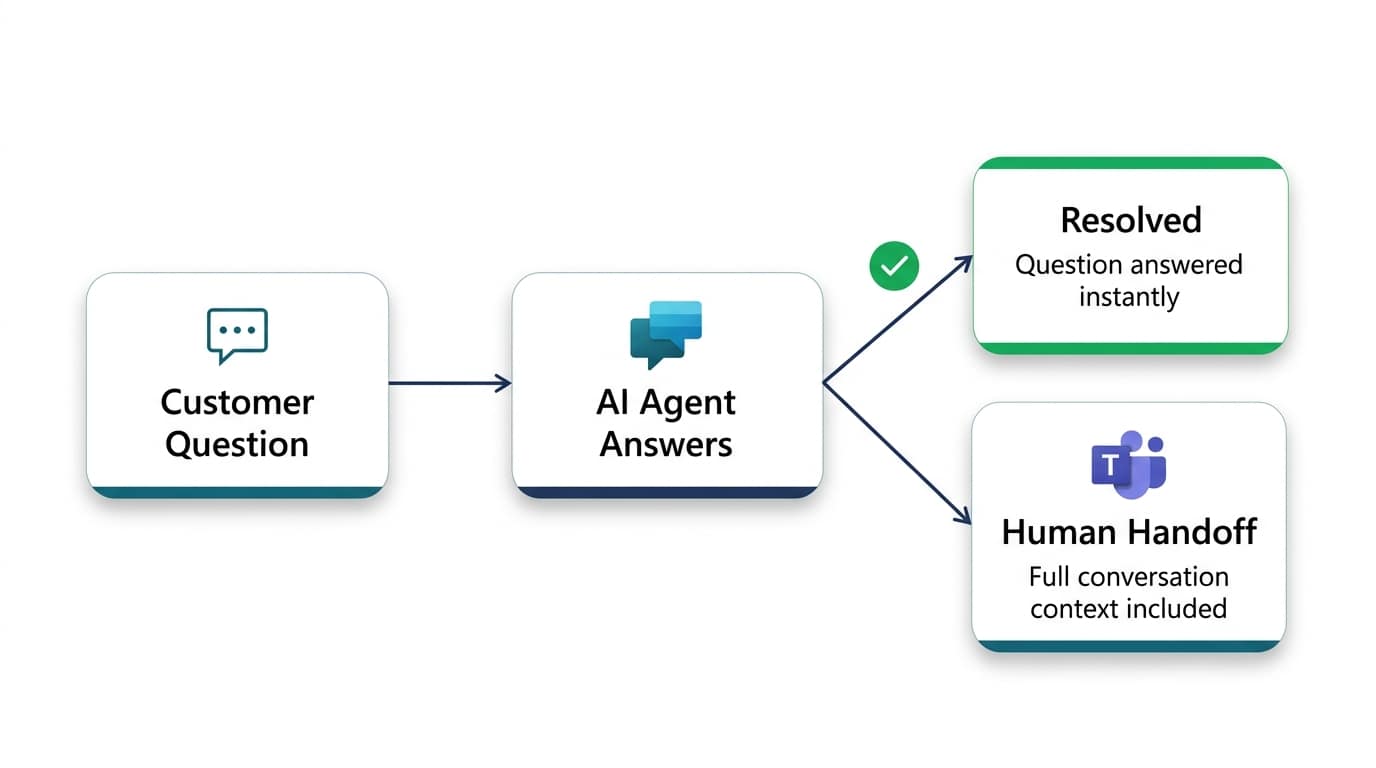
| Escalation to a human | Yes, scripted handoff | No |
A sensible first build uses generative answers for the long tail of questions, plus three or four authored topics for the moments that need precision: greeting, escalation to a human, and anything involving money or legal wording.
Step 3: Add Actions and Connectors
Answering questions is useful; doing things is better. Actions let your agent call one of the 1,000+ Power Platform connectors, run a Power Automate flow, or use a prompt you’ve defined. The agent decides when to invoke an action based on its description, so write descriptions the way you’d explain the task to a new hire.
For our Málaga distributor, a natural second phase is an action that creates a holiday request row in Dataverse, or one that raises a ticket when the agent can’t help. If you’ve already built flows, you can reuse them directly; our guide to automating workflows with Power Automate covers the patterns that transfer well. And if the agent needs a proper front end later, it pairs nicely with a canvas app, as described in our walkthrough on building custom applications using Power Apps.
Step 4: Test Before Anyone Else Sees It
The test pane sits on the right of the authoring canvas the whole time you build. Use it constantly, not just at the end. Ask the questions your colleagues actually ask, including badly phrased ones, in Spanish and English if your users will use both. The activity map shows which topic or knowledge source produced each reply, which makes bad answers easy to trace: usually the culprit is a stale document, not the AI.
Before going live, hand the agent to two or three real users for a week. In our experience they’ll surface question phrasings you never imagined, and fixing those pre-launch costs nothing.
Step 5: Publish to Teams or Your Website
Publishing takes minutes once testing looks good:
- Click Publish in the top bar. This pushes your latest version to all connected channels.
- Open the Channels tab and pick where the agent lives. For internal agents, choose Teams and Microsoft 365: users then chat with it like any colleague, and you can submit it to your organisation’s app catalogue.
- For a public agent, choose the website channel and copy the embed snippet into your site, or share the hosted demo page for stakeholder review first.
- Set authentication to match the audience: Microsoft Entra ID for employees, no authentication for anonymous public visitors. Never expose internal knowledge sources on an unauthenticated channel.
- After launch, check the built-in analytics weekly for unanswered questions and feed the gaps back into your knowledge sources.
What Does Copilot Studio Cost in 2026?
Licensing is consumption-based and, as of 2026, works out roughly like this. Microsoft sells a tenant-wide capacity pack of about 25,000 messages per month for approximately $200, and a pay-as-you-go option at roughly $0.01 per message, where richer interactions such as generative answers consume more messages than simple scripted replies. Users who already hold a Microsoft 365 Copilot licence (around €30 per user per month) can use certain agents grounded in work data without drawing on the message pack. Check the official Copilot Studio pricing page before budgeting, because Microsoft has adjusted the metering model more than once.
For a typical SME pilot, pay-as-you-go is the sensible start: a few hundred conversations a month costs pocket change, and you only commit to a capacity pack once usage justifies it.
Frequently Asked Questions
Do I need a developer to build an agent in Copilot Studio?
No. A capable business user can build a question-answering agent with website or SharePoint knowledge in a day. You’ll want technical help when you add authenticated actions, custom connectors, or Dataverse integration, because those touch security and environment configuration. Many companies start with a citizen-built pilot and bring in a partner to harden it for production.
How is Copilot Studio different from Microsoft 365 Copilot?
Microsoft 365 Copilot is a licensed assistant inside Word, Excel, Outlook, and Teams that works on your Microsoft 365 data. Copilot Studio is a builder: you use it to create your own agents with the knowledge, actions, and channels you choose. They complement each other, and agents you build can be published into the Microsoft 365 Copilot experience.
Can the agent answer in Spanish?
Yes. Copilot Studio supports Spanish among its many languages, and a generative agent will typically reply in the language the user writes in when your instructions tell it to. Test bilingual behaviour explicitly before launch, especially if your knowledge sources are written in one language and users ask in another.
Is company data safe in a Copilot Studio agent?
Agents run inside your Power Platform environment, so admin controls, data loss prevention policies, and Entra ID authentication all apply. SharePoint knowledge respects existing user permissions when authentication is configured. The main risk is human error: connecting internal content to a public, unauthenticated channel. Review channel and authentication settings before every publish. Microsoft’s documentation at learn.microsoft.com covers the security model in detail.
Next Steps
Pick one narrow, high-volume question set, build an agent against it this week, and measure whether people actually use it. That single experiment teaches you more than any amount of reading. If you’d rather build alongside people who’ve done it before, AlishBit helps businesses across Spain design, secure, and roll out Copilot Studio agents connected to Dynamics 365 and Microsoft 365. You can schedule a short meeting to talk through your first use case.
Exploring AI for Your Business?
AlishBit helps businesses across Spain and Europe put Microsoft AI and Copilot to practical use. Book a free consultation and get a no-hype assessment.